QRShow
Program to display QR codes
An app that can display one of
4 different QR codes.
(No more fumbling for a
piece of paper or trying
to pull a phone out a pocket
when entering a concert.)
These QR codes are downloaded
from the internet.
QRShow is licensed under the GPL V3.0.
The latest source tree is available
for browsing
here
and tarballs for the latest and older versions are located at the following links:
QR display
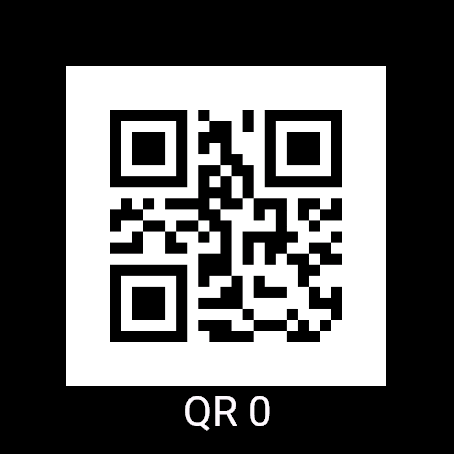
The initial display is a
screen showing the first QR code
stored on the device.
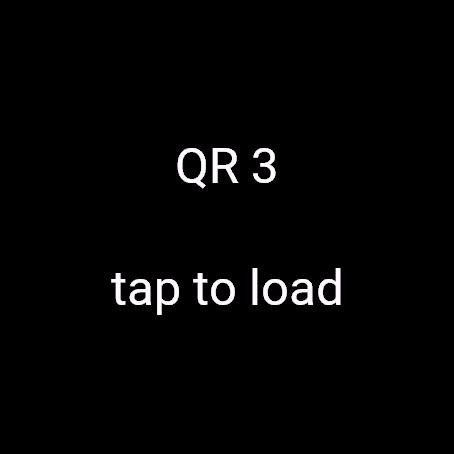
If no code has been downloaded
yet then the left hand image
above will be displayed.
Tapping on the screen
(or pushing the select button
on non-touch screens)
will download the image
from the URL specified in
the settings for the app.
This is just the first of 4
different QR codes that can
be shown.
Swiping up/down
(or pressing up/down
buttons)
will cycle through the
4 different QR codes.
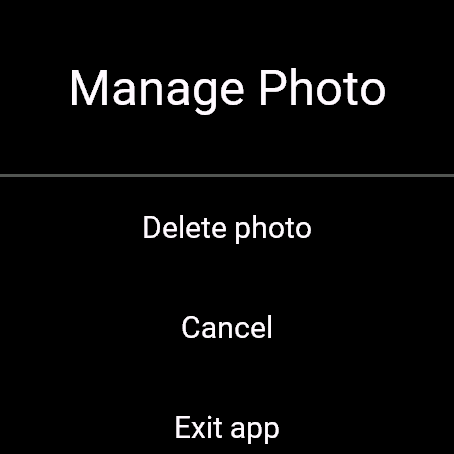
Manage Photo
Pressing the Back button
(or swiping right on a touch screen)
brings up this screen.
From here you can:
- Delete photo
This will delete the QR image from
the watch and go back to the
QR display screen where you
can download a new copy of that image.
- Cancel
Cancel this screen and go back to
the QR display screen.
- Exit app
Terminate the QRShow app.
QR Image Management
The easiest way to manage
the QR code images is to store
them on a cloud service.
When utilizing a cloud service
there are a few issues that
have to be addressed
(look to the sections on
specific cloud storage providers
to see work arounds for thesee issues):
- Direct link
Images are loaded onto the
watch via Garmin proxy serers
and these servers only accecpt
direct links to a file image
(most cloud services provide
links that point to an HTML
wrapper around the actual file).
- Persistent names
Although not technically
required
(you can update the settings
for QRShow every time you
upload a new QR code)
it is much more convenient if
the contents of a cloud storage
file can be changed without
changing the direct link for that
file.
One way to deal with cloud storage
and QRShow is to create 4 different
files on your cloud storage provider.
Configure direct links to those files
as the settings URLs for the QRShow
app.
Then all you need to do is upload a
new QR image into one of the cloud
storage files and then tell QRShow to
load the new image.
Google drive
It is very easy to integrate
Google Drive with QRShow:
Dropbox
It's also simple to integrate
Dropbox with QRShow:
- Direct link
Use the Dropbox page to copy the
share link. This link will end
with the string dl=0. Change
that string to dl=1 and you
now have a direct link that is
usable with QRShow.
- Persistent names
This is easy, all you have to do
is upload a new version of the QR code,
making sure that you use the same name
for the file in the new upload.
On Dropbox, an uploaded file with the
same name as a current Dropbox file just
replaces the contents without affecting
the sharable link.
Microsoft One Drive
Haven't been able to get One Drive
share with anyone links to work,
Microsoft still requires some sort of
authentication
(any authentiation breaks
the Garmin proxy servers).
If anyone has a solution let me know
and I'll incorporate it.
Apple iCloud
Haven't been able to get iCloud
share links to work either.
If anyone has a solution let me know
and I'll incorporate it.
Configuration
QRShow is configurable through
the Connect IQ app
on your phone.
These settings are:
- Cache images
QRShow will save each QR code
in the app storage space so that
they can be display even if the
connected phone is not available.
Unfortunately,
Garmin has decided to put
severe
restrictions on what can be
stored on the phone.
2
Because of this,
devices like a Fenix5
does not have enough space to
store a simple QR code.
3
Setting this control to false
will have QRShow download
the QR image from the internet
every time and will not store
the image in the watches memory.
This severely degrades the
utility of the app but
at least it still works.
- URL
These are the 4 different URLs that
contain the QR codes
that the app will show.
Glance view
QRShow offers a glance view that shows the
number of QR codes that have been stored
in memory.
Not really that useful but now you
know there is something wrong
if you arrive at a concert expecting
2 tickets and you only have
1 QR stored.
QR Codes vs. images
This app was mainly designed to show
QR codes so that's all that this
documentation talks about.
As it turns out,
a QR code is just an image.
QRShow will happily display
any image you link it to,
it doesn't care.
Also,
much is I have issues with
the way Garmin handles images
(check out the footnotes for
my rants on this subject)
a side effect of the Garmin
approach is that there doesn't
seem to be any limits on the
size of image that you can
display on your watch.
On my Venu3 I have successfully
displayed a 5,000 by 5,000 pixel
image that was stored in a
33MByte file with no problem.
You lose a lot of detail
as the Garmin proxy servers compress
those 5000x5000 pixels down to
the 354x354 pixels that are actually
displayed on the watch but it
all works.
1.
Unfortunately,
nothing on the internet is
permanent so it's possible
that the Google Drive Direct Link Generator
site could go away.
If that happens,
the instructions for manually
converting a Google Drive html wrapper
URL into a direct access URL are simple.
Given an HTML wrapper URL of:
https://drive.google.com/file/d/1LDRlyZaZTF-bxHjBDEiL2obMxYHtf3YT/view?usp=sharing
you create a direct access URL by
extracting the file UUID,
the part between /d/ and /view,
and put it into a new URL which looks like this:
https://drive.google.com/uc?export=download&id=1LDRlyZaZTF-bxHjBDEiL2obMxYHtf3YT
2.
Major Rant.
Explain to me again why,
on my Venu3 watch that
has 8G of memory,
QRShow only has 128K
of storage space available
for QR images.
3.
Second Rant.
Even though there is 128K of
total storage space, older
devices,
like the Fenix5,
can only store individual
items that are less than 8K
in size.
This is too small for
even a simple QR code so
storing images on older
devices won't work
4.
Fortunaely,
newer devices,
like the Venu3,
have increased the individual
item limit to 32K which
is enough to store images
on those devices.
4.
Third Rant.
The obvious workaround
for the restricted item
size is to just break
the internal image bitmap
that the uses into 8K
chunks and then store those
chunks.
Nope,
Garmin does not provide any
API that allows an app to
mainipulate bitmaps so there's
no way to do this.